Overview
Foodlay Deliveryman App is a complete, production-ready application for delivery partners built with Flutter for Android and iOS.
- A full delivery app with login, orders, maps, and chat
- GoRouter-based navigation with a dashboard (Home, Orders, Account)
- Localization, theming, DI, and Firebase messaging integrated
Basic Usage
- Sign in and switch to online mode
- Accept incoming delivery requests
- Navigate to pickup, update status, deliver order
- Review completed orders and earnings
Requirements
- Flutter (Channel stable, 3.41.7) — Dart SDK 3.11.5
- Android Studio
- Xcode 16+ for IPA file build
- Devices or emulators
Environment Setup
Windows
- Download Android Studio Koala 2024.1.2 (bundled JDK 17).
- Ensure JDK 17 is used for Android builds.
- Run the installer (e.g., android-studio-ide-<version>-windows.exe).
- Follow the installation wizard; choose a custom location if needed.
- Select components (Android Studio, Android Virtual Device, etc.).
- Launch Android Studio and complete initial setup.
- Install SDK components when prompted.
- Optional: create an emulator in AVD Manager.
Install Flutter SDK (Windows)
- Download the latest stable Flutter for Windows.
- Extract to a folder, e.g., C:\flutter.
- Add C:\flutter\bin to PATH:
- Right‑click “This PC” → Properties → Advanced system settings → Environment Variables.
- Edit “Path” under System variables → New → add C:\flutter\bin.
flutter doctor
- In Android Studio: File → Settings → Plugins → Marketplace → install Flutter and Dart, then restart.
Linux
- Download Android Studio Koala 2024.1.2 (bundled JDK 17) for Linux.
- Ensure JDK 17 is used for Android builds.
- Extract the archive, move to a preferred location, run setup:
tar -xvzf android-studio-ide-<version>-linux.tar.gz
sudo mv android-studio /YOUR_DIRECTORY
cd /YOUR_DIRECTORY/android-studio/bin
./studio.sh
- Install Flutter SDK (Linux): download stable, extract, move to a preferred location, add flutter/bin to PATH.
tar xf flutter_linux_<version>.tar.xz
sudo mv flutter /YOUR_DIRECTORY
flutter doctor
- In Android Studio: Settings → Plugins → Marketplace → install Flutter and Dart, then restart.
macOS
- Download Android Studio for macOS (Koala 2024.1.2 with JDK 17).
- Ensure JDK 17 is used for Android builds.
- Open the DMG and drag Android Studio to Applications.
- Launch Android Studio; complete setup and install SDK components.
- Install Flutter SDK (macOS): download stable, extract, move to preferred location, add flutter/bin to PATH.
tar xf flutter_macos_<version>.tar.xz
flutter doctor
- In Android Studio: Preferences → Plugins → Marketplace → install Flutter and Dart, then restart.
SDK path configuration & common setup issues
Most first‑time build failures come from the tools not knowing where the Flutter or Android SDK lives. Configure the paths once and confirm everything with flutter doctor.
- "flutter is not recognized" / "command not found" — the
flutter/bin folder is not on your PATH. Add it and reopen the terminal:
- Windows: Environment Variables → Path → New → C:\flutter\bin.
- macOS/Linux: add to your shell profile, e.g. export PATH="$PATH:$HOME/flutter/bin".
- "SDK location not found" / "Unable to locate Android SDK" — the Android SDK path is missing. Create android/local.properties and point it at both SDKs. This file is machine‑specific and git‑ignored — never commit it:
# android/local.properties  (Windows — note the double backslashes)
sdk.dir=C:\\Users\\YOU\\AppData\\Local\\Android\\Sdk
flutter.sdk=C:\\flutter

# macOS / Linux
sdk.dir=/Users/YOU/Library/Android/sdk
flutter.sdk=/Users/YOU/flutter
- Find your Android SDK path in Android Studio under Settings → Languages & Frameworks → Android SDK ("Android SDK Location").
- Alternatively set an ANDROID_HOME (or ANDROID_SDK_ROOT) environment variable pointing at the same SDK folder.
- Command-line tools / licenses missing — install "Android SDK Command-line Tools" from the SDK Manager, then accept the licenses:
flutter doctor --android-licenses
- Re‑run flutter doctor -v until every line shows a green check. It prints the exact SDK paths it resolved, which makes a wrong path easy to spot.
Mandatory Setup
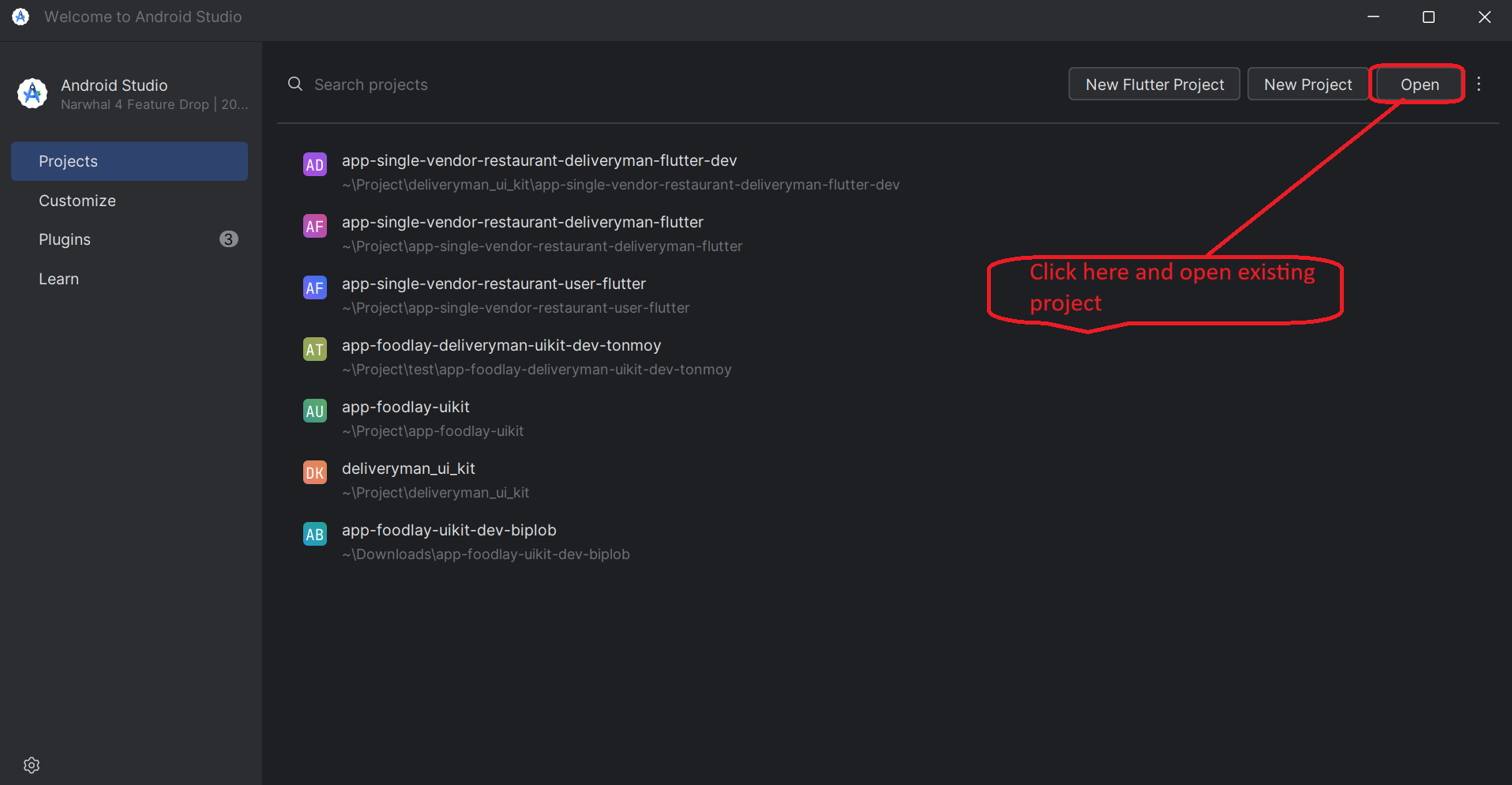
Run an existing Flutter project on IDE
- Verify Flutter and IDE setup in a terminal:
flutter doctor
- Open the project in Android Studio or VS Code.
- If dependencies are not prompted, fetch them manually:
flutter pub get
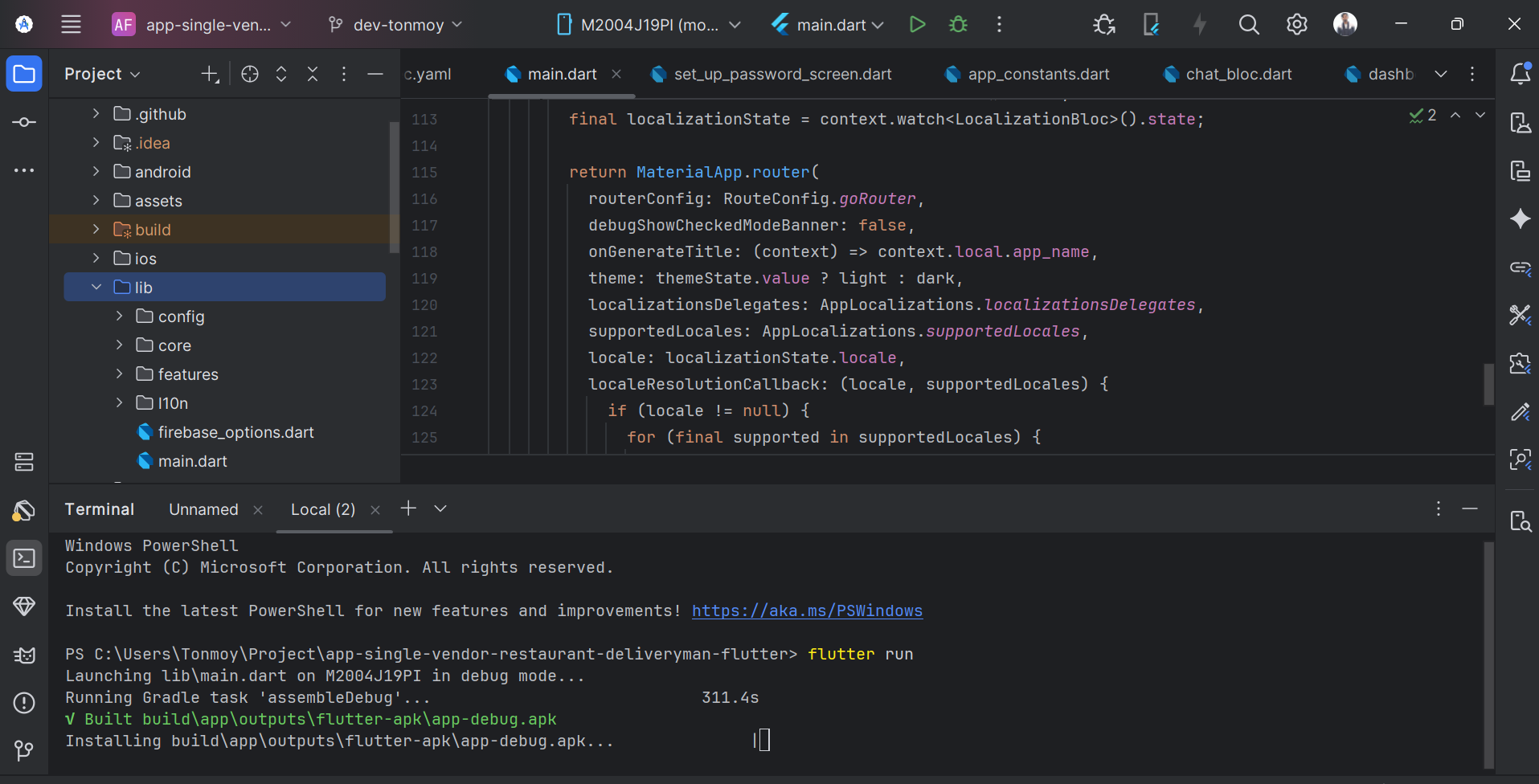
- Run the app from IDE or terminal:
flutter run
Change App Logo & Icon
App Logo
- Go to <project>/assets/images/ and replace logo.png with your logo.
- Use the exact file name logo.png.
App Icon
- Generate icons using your preferred app icon generator.
- Android: replace android/app/src/main/res/mipmap-* with the generated icons.
- iOS: replace ios/Runner/Assets.xcassets with the generated Assets.xcassets.
Change App Name
- Update the application name in your constants file:
lib/config/util/app_constants.dart
static const String appName = 'YOUR_APP_NAME';
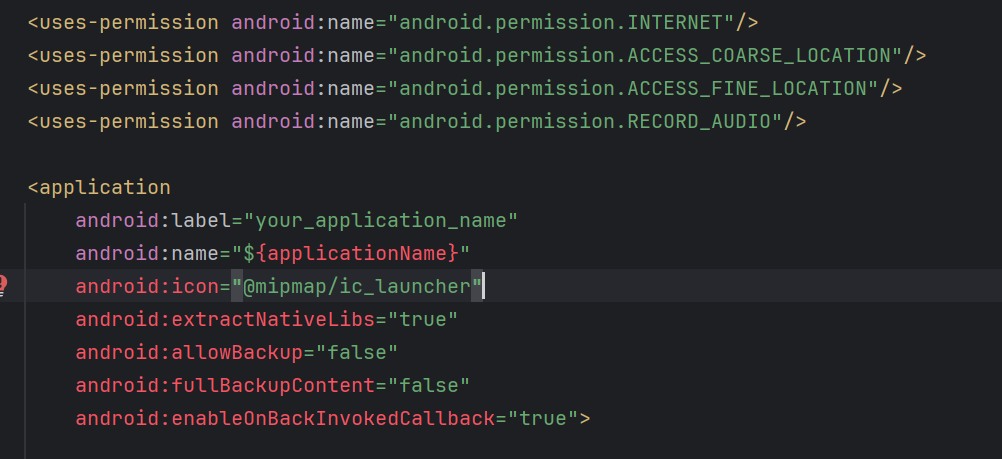
- Android: set the label in AndroidManifest.xml:
android/app/src/main/AndroidManifest.xml
android:label="YOUR_APP_NAME"
- iOS: set display name and bundle name in Info.plist:
ios/Runner/Info.plist
<key>CFBundleDisplayName</key>
<string>YOUR_APP_NAME</string>
<key>CFBundleName</key>
<string>YOUR_APP_NAME</string>
Change Base URL
- Install and set up your Admin Panel first.
- If admin login is https://your_domain.com/admin/auth/login then base URL is https://your_domain.com
- Open <project>/lib/util/app_constrants.dart and set baseUrl.
- Do not add a trailing slash.
Wrong:
static const String baseUrl = 'https://your_domain.com/';

Right:
static const String baseUrl = 'https://your_domain.com';
Change App Package Name
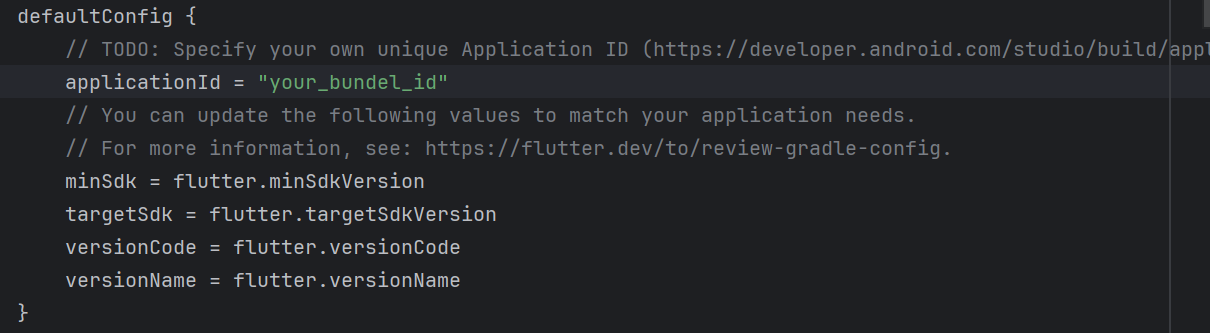
com.flutter.deliveryman — replace with your own (e.g. com.yourcompany.foodlaydelivery).Step 1 — Android: Update applicationId
- Open android/app/build.gradle and update
applicationId:
defaultConfig {
    applicationId "com.yourcompany.foodlaydelivery"
    ...
}
Step 2 — Android: Rename the Kotlin source folder
- Old path: android/app/src/main/kotlin/com/flutter/deliveryman/
- New path: android/app/src/main/kotlin/com/yourcompany/foodlaydelivery/
- In Android Studio: right-click the innermost folder → Refactor → Move, or rename each folder level manually.
Step 3 — Android: Update AndroidManifest.xml
// android/app/src/main/AndroidManifest.xml
<manifest package="com.yourcompany.foodlaydelivery" ...>
Step 4 — Android: Update MainActivity.kt
// android/app/src/main/kotlin/com/yourcompany/foodlaydelivery/MainActivity.kt
package com.yourcompany.foodlaydelivery
Step 5 — iOS: Change Bundle Identifier in Xcode
- Open ios/Runner.xcworkspace in Xcode.
- Select the Runner target → General tab.
- Set Bundle Identifier to
com.yourcompany.foodlaydelivery.
Step 6 — iOS: Update Info.plist
// ios/Runner/Info.plist
<key>CFBundleIdentifier</key>
<string>com.yourcompany.foodlaydelivery</string>
Step 7 — Clean and rebuild
flutter clean
flutter pub get
flutter run
google-services.json and GoogleService-Info.plist.Setup Firebase for Push Notification
Follow the ten steps below in order. Each console step includes a screenshot of the screen you should see. Change your package name/bundle ID first (see Change App Package Name) — Firebase registrations are tied to it.
Step 1 — Create a Firebase project
- Open console.firebase.google.com and sign in with a Google account.
- Click Add project, enter a project name (e.g.
foodlay), enable or skip Google Analytics (either works), then click Create project. If you already created the project for the Customer app, reuse it and just add this app to it.

Step 2 — Register the Android app
- On the project overview page click the Android icon (Add app).
- Enter the exact
applicationIdfromandroid/app/build.gradleas the package name, then click Register app.

Step 3 — Download google-services.json
- Download
google-services.jsonand place it atandroid/app/google-services.json(replace the file if it already exists). - Ensure the Google Services Gradle plugin is applied in
android/app/build.gradle. - Create a solid white notification icon named
notification_icon.pngunderandroid/app/src/main/res/drawable/.

android/app/.Step 4 — Add SHA-1 and SHA-256 fingerprints
- Print your signing fingerprints with the Gradle signing report:
cd android
./gradlew signingReport
- In Firebase open Project settings → Your apps → (Android app) → Add fingerprint and paste the SHA-1 and SHA-256 values. Add both debug and release/upload key fingerprints; if you distribute via Google Play, also add the App signing key SHA from Play Console.

Step 5 — Register the iOS app
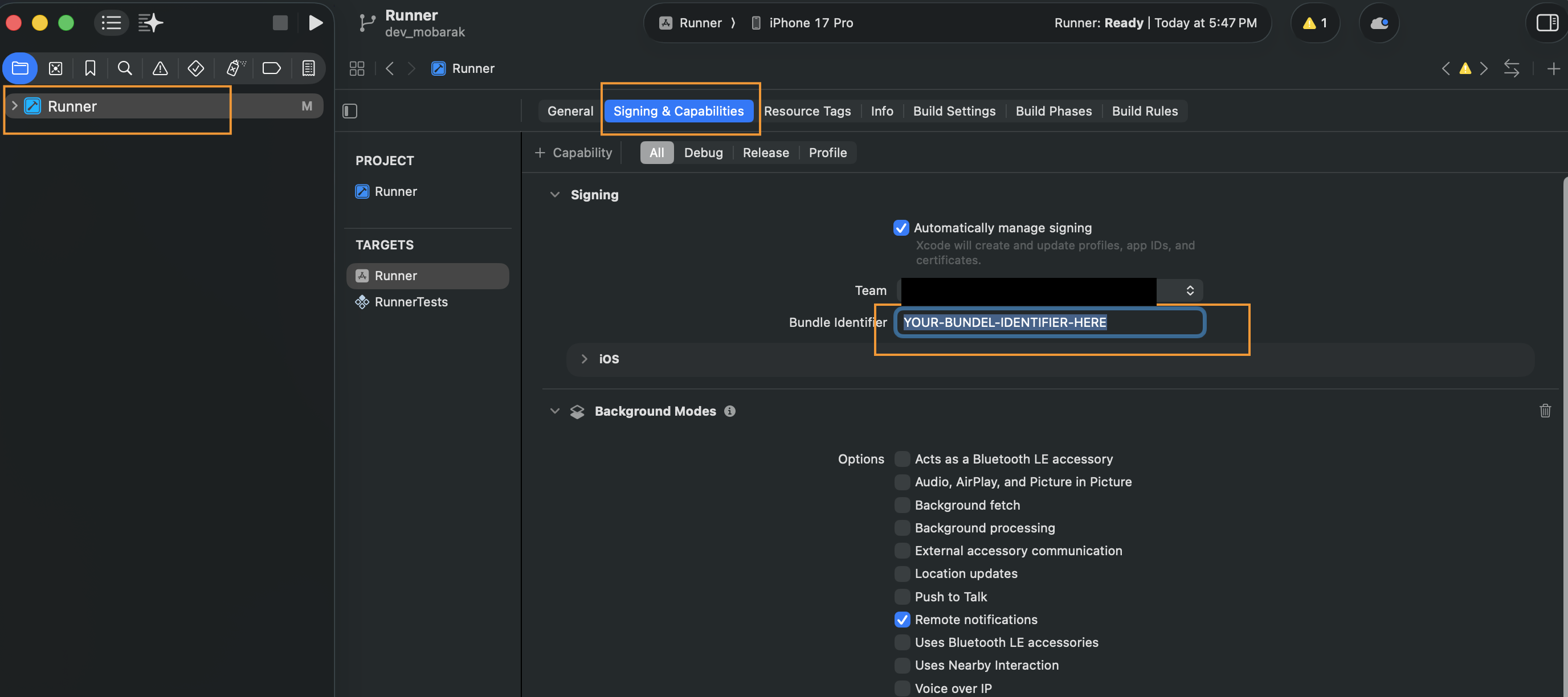
- Back on the project overview click Add app → iOS and enter your Bundle Identifier (Xcode → Runner target → Signing & Capabilities).
- Download
GoogleService-Info.plistand drag it intoios/Runnerin Xcode's project navigator — make sure Runner is ticked as the target so the file is bundled.

Step 6 — Enable push capabilities in Xcode
- Open
ios/Runner.xcworkspace, select the Runner target and open Signing & Capabilities. - Click + Capability and add Push Notifications.
- Add Background Modes and tick Remote notifications.

Step 7 — Create and upload the APNs Auth Key
- In Apple Developer
open Certificates, Identifiers & Profiles → Keys, create a key with
Apple Push Notifications service (APNs) enabled, and download the
.p8file (it can only be downloaded once — store it safely). - In Firebase open Project settings → Cloud Messaging → Apple app
configuration and upload the
.p8key together with its Key ID and your Team ID.

Step 8 — Generate firebase_options.dart with FlutterFire
- Run the FlutterFire CLI from the project root, pick your Firebase project and platforms, and it
regenerates
lib/firebase_options.dartautomatically.
dart pub add firebase_core firebase_messaging
dart pub global activate flutterfire_cli
firebase login
flutterfire configure

Step 9 — Request permission & get the device token
- Request notification permission (required on iOS and Android 13+) and print the FCM token to test delivery.
final settings = await FirebaseMessaging.instance.requestPermission(
  alert: true, badge: true, sound: true,
);
final token = await FirebaseMessaging.instance.getToken();
print('FCM token: $token');
Step 10 — Send a test notification
- Build and run on a real device.
- Open Firebase → Messaging → New campaign → Send test message and paste the device token from Step 9.
- Android requires Google Play services; iOS requires a real device (simulator cannot receive push).

Troubleshooting
- Token is null (iOS): verify APNs key uploaded, Push/Background modes enabled, run on a real device.
- Missing google-services.json: ensure file path is android/app/google-services.json.
- No notification on Android 13+: request POST_NOTIFICATIONS permission at runtime.
- Stuck delivery: reinstall the app after configuration changes and restart the IDE.
Android Secrets
- Create android/app/src/main/res/values/secrets.xml with required keys.
- Keys: google_maps_api_key, facebook_app_id, facebook_client_token
<resources>
  <string name="google_maps_api_key">YOUR_KEY</string>
  <string name="facebook_app_id">YOUR_APP_ID</string>
  <string name="facebook_client_token">YOUR_TOKEN</string>
</resources>
Add Google Map API Key
Maps power pickup/drop-off navigation and live location updates while delivering. Follow the steps below in order — each console step includes a screenshot of the screen you should see.
Step 1 — Open Google Cloud Console
- Open console.cloud.google.com and pick the same project that Firebase created (project picker in the top bar). Keeping Maps and Firebase in one project keeps configuration simple.
Step 2 — Enable the required APIs
- Open APIs & Services → Library and enable each of the following: Maps SDK for Android, Maps SDK for iOS, Maps JavaScript API, Places API, Places API (New), Geocoding API, Geolocation API, Directions API, Distance Matrix API, Routes API.

Step 3 — Enable billing
- Open Billing and link a billing account. Google Maps requires billing even within the monthly free usage tier — without it the map renders gray with a “For development purposes only” watermark.
Step 4 — Create the API key
- Open APIs & Services → Credentials → Create credentials → API key and copy the generated key.

Step 5 — Restrict the key (recommended)
- Click the key to edit it. Under Application restrictions choose Android apps and add your package name and SHA-1. For iOS create a second key restricted to iOS apps with your bundle ID, and for the web map a third key restricted by Websites referrer.
- Under API restrictions select only the APIs enabled in Step 2.

Step 6 — Add the key to the app
Android — put the key in android/app/src/main/res/values/secrets.xml (see Android Secrets above); the manifest reads it via meta-data:
<meta-data android:name="com.google.android.geo.API_KEY" android:value="YOUR_MAP_API_KEY_HERE"/>
iOS — set the key in ios/Runner/AppDelegate.swift:
GMSServices.provideAPIKey("YOUR_MAP_API_KEY_HERE")
Web — add the script tag in web/index.html:
<script src="https://maps.googleapis.com/maps/api/js?key=YOUR_MAP_API_KEY_HERE"></script>
Step 7 — Verify
- Do a full rebuild (
flutter clean, thenflutter run), accept a test order and open its map screen — confirm tiles load and the route to the pickup point is drawn.
Troubleshooting
- Blank or gray map: billing not enabled, or the key's application restriction doesn't match your package name/SHA-1 (release builds have a different SHA-1 than debug builds).
- Place search or autocomplete returns REQUEST_DENIED: Places API (New) is not enabled, or the key's API restrictions exclude it.
- Map works in debug but not in release: add the release/upload keystore SHA-1 to the Android key restriction.
- iOS crash on the map screen:
GMSServices.provideAPIKeymust run before the first map is shown — confirm the placeholder key string was replaced.
Connect to Backend & Firebase
This is the single checklist that links the Deliveryman app to your server, push notifications, and maps. Complete the steps in order — each one links to the detailed instructions in Mandatory Setup above.
Step 1 — Install the backend first
- Install and configure the Admin & Web (Laravel) backend. See the Admin & Web guide.
- Confirm you can log into the admin panel and that the API responds under https://your_domain.com/api/v1.
Step 2 — Point the app at your API (Base URL)
- Set baseUrl to your domain root — no trailing slash and no /admin. See Change Base URL.
- Example: admin login at https://your_domain.com/admin/auth/login → baseUrl is https://your_domain.com
static const String baseUrl = 'https://your_domain.com';
Step 3 — Set the app package / bundle ID
- Change the Android package name and iOS bundle identifier before Firebase, so the registered Firebase apps match. See Change App Package Name.
Step 4 — Connect Firebase (push notifications)
- Use one Firebase project for all Foodlay apps. See Setup Firebase for Push Notification.
- Android: place google-services.json at android/app/.
- iOS: add GoogleService-Info.plist to ios/Runner and upload your APNs auth key to Firebase.
- The same FCM setup is what lets the backend push order, chat, and status notifications to the app.
Step 5 — Add the Google Maps API key
- Add your Maps key for Android and iOS. See Add Google Map API Key.
Step 6 — Verify the connection
- Run the app on a real device, log in with a delivery account, and confirm data loads from your server.
- Send a test push from Firebase → Cloud Messaging to the device token to confirm notifications arrive.
- If login fails or lists stay empty, see Cannot connect to backend / API errors.
Quick Start
Pick a device
- Android: start an emulator from AVD Manager or connect a device with USB debugging enabled.
- iOS: open Simulator from Xcode (or connect a real device with Developer Mode enabled).
Run from IDE
- Open the project in Android Studio or VS Code.
- Select a target device from the device dropdown.
- Click Run ▶ to build and launch in debug mode.
Run from terminal
flutter pub get
flutter run
Common checks
- Accept Android SDK licenses if prompted.
flutter doctor --android-licenses
- Verify a device is available.
flutter devices

Android & iOS Config
Android
- App ID: set applicationId under defaultConfig in android/app/build.gradle.
- App name: set android:label in android/app/src/main/AndroidManifest.xml.
- SDK levels: set minSdkVersion and targetSdkVersion in build.gradle.
- Signing: create a keystore, add key.properties, and reference it in the release signingConfig.
- Release build: flutter build apk or flutter build appbundle.
iOS
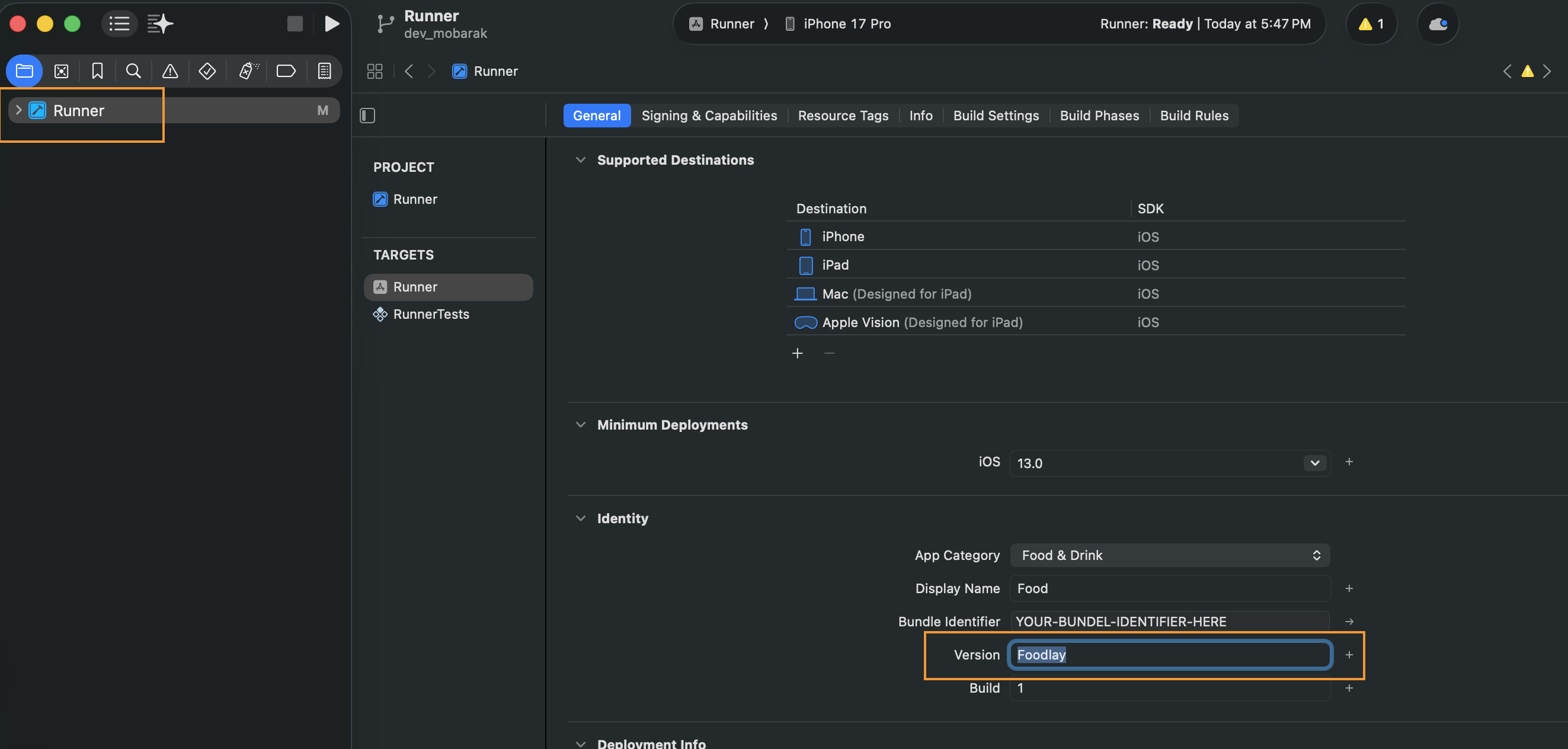
- Open ios/Runner.xcworkspace in Xcode.
- Bundle Identifier: set under General; select Team to enable automatic signing.
- Deployment Target: choose a supported iOS version.
- Capabilities: enable Push Notifications and Background Modes if using FCM.
- Release build: flutter build ipa or archive via Xcode Product → Archive.
Localization & RTL
Add New Language
- Create a new ARB file under lib/l10n/arb, e.g., lib/l10n/arb/app_es.arb
- Copy all keys from app_en.arb and translate only the values.
- Keep placeholders and variables intact to avoid runtime issues.
- Use valid ISO language/country codes when needed (ISO‑639 / ISO‑3166). Reference: ISO codes list
lib/l10n/arb/app_es.arb
{
  "@@locale": "es",
  "office": "Oficina",
  "orders": "Pedidos"
}
- Generate localizations (or hot‑restart if auto‑generated):
flutter gen-l10n
- Ensure the new locale is present in supportedLocales.
MaterialApp(
  supportedLocales: AppLocalizations.supportedLocales,
  // Or explicitly:
  // supportedLocales: const [Locale('en'), Locale('es')],
)
Remove Existing Language
- Delete the ARB file from lib/l10n/arb and run flutter gen-l10n.
- If locales are declared manually, remove the Locale from supportedLocales.
Make Default Language
- Force a default locale by setting the locale on MaterialApp:
MaterialApp(
  locale: const Locale('es'),
)
- Or rely on device language by not specifying locale.
RTL Support
- RTL locales like Arabic are supported automatically by Flutter’s Directionality.
- Use directional-aware widgets; avoid hard-coded left/right paddings where possible.
Theme & Branding
Change App Color
- Open <project>/lib/theme/light_theme.dart and set primaryColor, foregroundColor, secondary, etc.
- Open <project>/lib/theme/dark_theme.dart and mirror the same updates for dark mode.
- Keep contrast and accessibility in mind for text and icons.
Change App Font
- Download a font family you like. See free options at Google Fonts.
- Unzip and copy TTF/OTF files to <project>/assets/font/
- Declare the font in pubspec.yaml under flutter → fonts.
flutter:
  fonts:
    - family: YOUR_FONT_FAMILY_NAME
      fonts:
        - asset: assets/font/YOUR_FONT_FILE_NAME.ttf
          weight: YOUR_FONT_WEIGHT
- Set the font family in <project>/lib/util/app_constants.dart
static const String fontFamily = 'YOUR_FONT_FAMILY_NAME';
Change Notification Sound
- Android: replace <project>/android/app/src/main/res/raw/notification.wav with your file. Keep the filename notification.wav
- If there is notification.mp3 or notification.wav under <project>/assets, replace it too and keep the filename unchanged.
- Use a short and small audio file to avoid delivery issues.
Change Onboarding Text and Graphics
- Open lib/l10n/arb/app_en.arb. Update values for keys such as "on_boarding_1_title" and "on_boarding_1_description". Do not change keys.
"on_boarding_1_title": "YOUR_PREFERRED_TITLE",
"on_boarding_1_description": "YOUR_PREFERRED_DESCRIPTION"
- Repeat for other languages (e.g., app_es.arb) and regenerate: flutter gen-l10n
- Graphics: replace <project>/assets/images/onboard_1.png, onboard_2.png, onboard_3.png with your PNGs using the same names.
App Screenshots
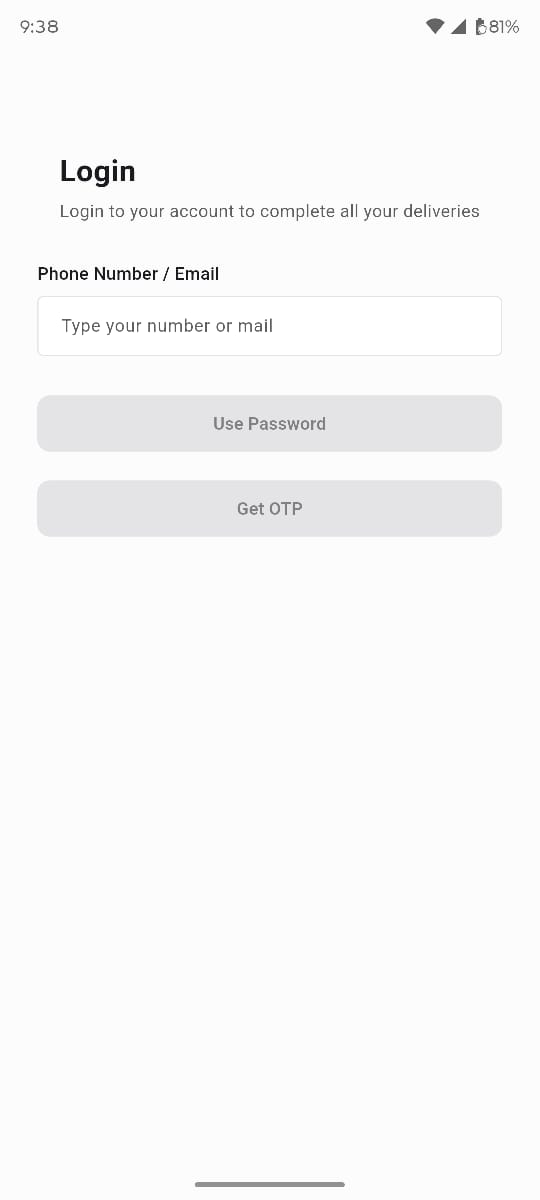
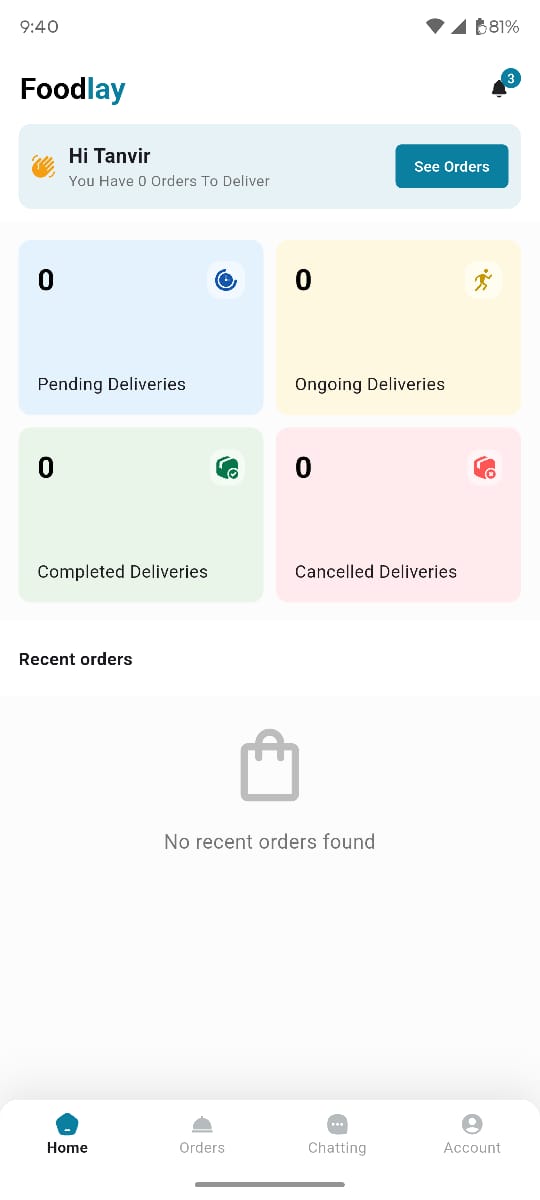
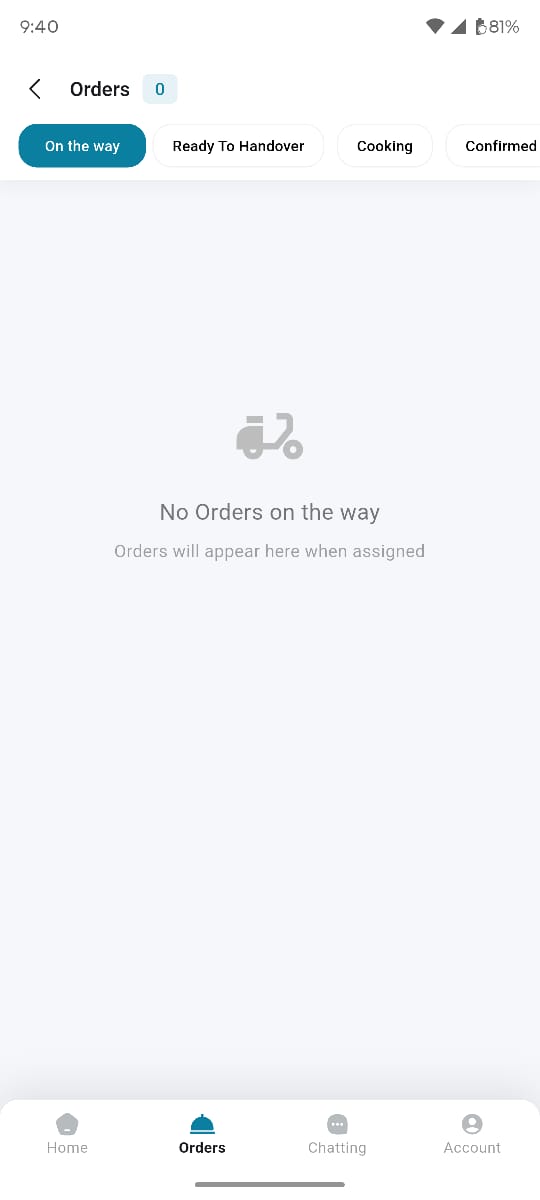
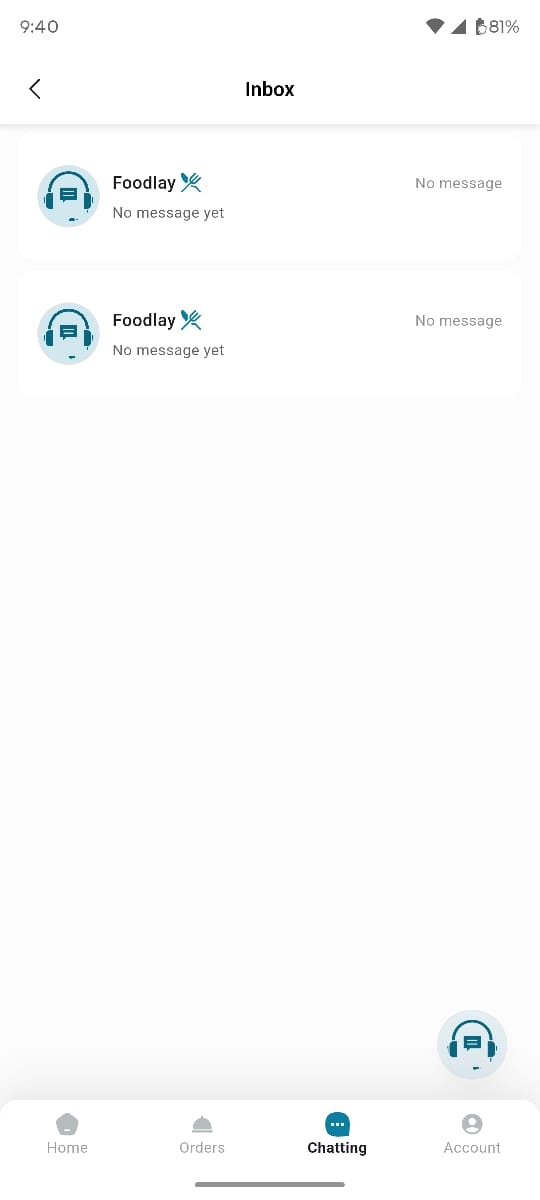
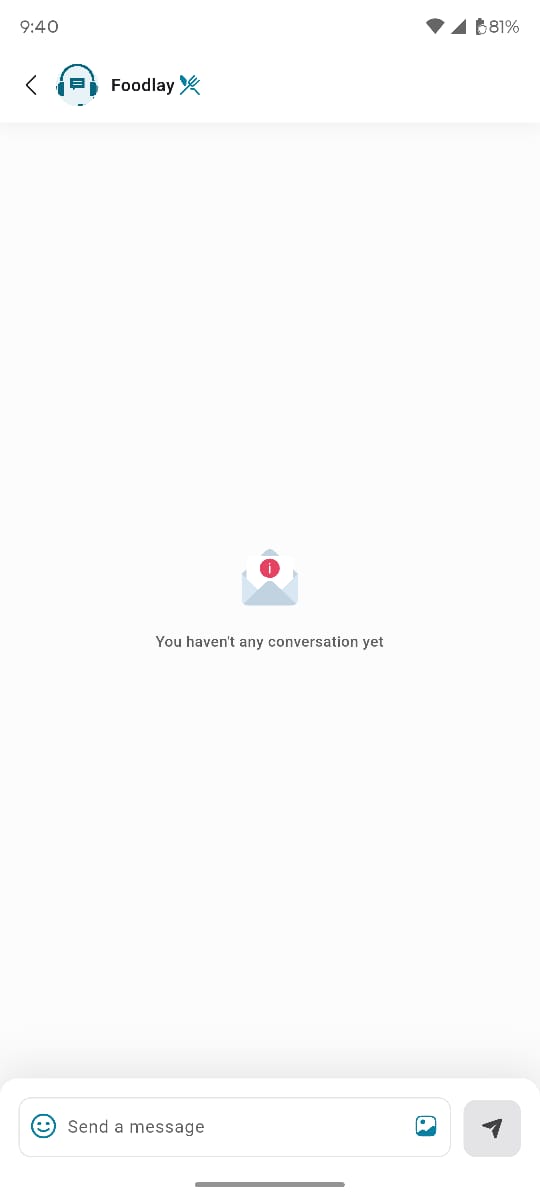
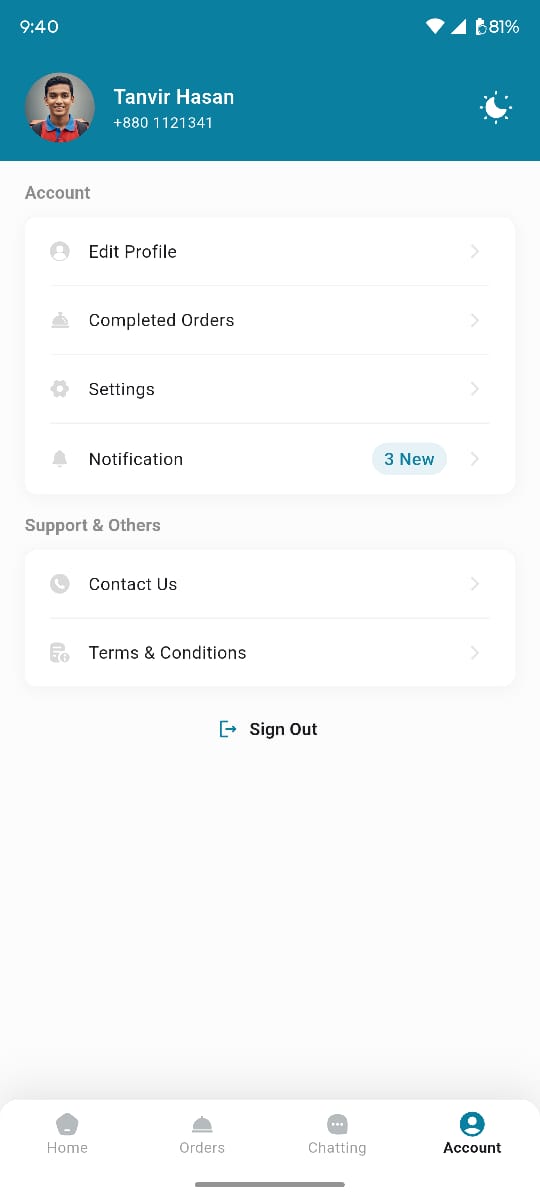
These are the main interfaces of the Deliveryman app, following a typical flow from login through dashboard, orders, chat and account. The images live in source/assets/images/screenshots/deliveryman/. To swap in your own build, replace the matching file using the same name and refresh this page.
Screens shown
- screenshots/deliveryman/01-login.jpg — Login
- screenshots/deliveryman/02-dashboard.jpg — Dashboard
- screenshots/deliveryman/03-orders.jpg — Orders
- screenshots/deliveryman/04-inbox.jpg — Inbox
- screenshots/deliveryman/05-chat.jpg — Chat
- screenshots/deliveryman/06-account.jpg — Account / Profile
Core Features
- Dashboard tabs: Home, Orders, Account
- Login with password/OTP; setup password
- Orders list, details, confirmation
- Order delivery location with Google Maps (from/to)
- Cancel delivery with reason selection
- Notifications (Firebase) and local notifications
- Chat and conversations
- Settings, edit profile, terms & condition, contact us
- File viewer for images/videos
Architecture
- Routing with GoRouter and dashboard ShellRoute
- State with Bloc; DI via get_it + injectable
- ThemeLocalizationWrapper and AppWrapper
- Firebase initialized in main with NotificationHelper and background handler
- Error handling via Catcher2 (debug/release configs)
Routes
- Shell: Dashboard
- Home: /home
- Orders: /order
- Orders → Details: /order/order_details
- Orders → Result: /order/order_result
- Orders → Cancel Reason: /order/order_cancel_reason
- Orders → Delivery Location: /order/order_delivery_location
- Chat: /chat
- Chat → Conversation: /chat/conversation
- Account: /account
- Login: /login
- Login → Password: /login/password
- Login → Verification: /login/verification
- Login → Set Up Password: /login/set_up_password
- Settings: /settings
- Settings → Setup Password: /settings/settings_setup_password
- Notification: /notification
- File Viewer: /file_viewer
- Splash: /splash
- Contact Us: /contact_us
- Terms & Condition: /terms_and_condition
- Edit Profile: /edit_profile
- Forget Password Login: /forget_login
Project Structure
- lib/config/route: route_config.dart
- lib/config/theme: light_theme.dart, dark_theme.dart, custom_theme_colors.dart
- lib/config/util: assets.gen.dart, fonts.gen.dart, styles.dart, constants
- lib/core: helpers, DI, notifications, handlers
- lib/features: account, chat, orders, settings, home, etc.
- lib/l10n/arb: app_en.arb, app_ar.arb, app_bn.arb, app_es.arb, app_hi.arb
Run and Debug
From IDE
- Open the project in Android Studio or VS Code.
- Select a device (emulator/simulator/USB) from the device picker.
- Click Run ▶ to start in debug mode. Use hot reload for UI changes.
- Set breakpoints in Dart files; inspect Variables and Call Stack.
- Open Flutter DevTools from the IDE for Performance, Memory, and Logs.
From terminal
flutter pub get
flutter devices
flutter run
- Hot reload: press r. Hot restart: R. Quit: q.
- Run on a specific device with flutter run -d <deviceId>.
- Attach to an already running app:
flutter attach
Logging
- View framework/app logs:
flutter logs
- Android (advanced):
adb logcat | grep -i your.package.name
- iOS Simulator (advanced):
xcrun simctl spawn booted log stream --predicate 'process == "Runner"'
Profile performance
- Run with instrumentation and use DevTools → Performance:
flutter run --profile
Clean & rebuild
- If builds behave unexpectedly, clean and fetch dependencies again:
flutter clean
flutter pub get
Build and Release
flutter build apk commands below
produce a local binary for testing on your own devices only. For public release, publish through the official
Google Play Store (upload the
.aab) and the Apple App
Store. Do not host or share raw .apk download links publicly.Android
- Ensure release signing is configured. See Signing & Release section.
- Release APK (quick test on device):
flutter build apk --release
- App Bundle (required for Play Store):
flutter build appbundle
- Secure release (obfuscation + symbols):
flutter build apk --release --obfuscate --split-debug-info=build/app/outputs/symbols
- Secure App Bundle (preferred for Play Store):
flutter build appbundle --release --obfuscate --split-debug-info=build/app/outputs/symbols
- Split per ABI for smaller APKs:
flutter build apk --split-per-abi
- Artifacts:
build/app/outputs/flutter-apk/app-release.apk
build/app/outputs/bundle/release/app-release.aab
- Install to test on device:
flutter install -d <deviceId>
- Set version in android/app/build.gradle before release:
defaultConfig {
    versionCode 2
    versionName "1.1.0"
}
iOS
- Prerequisites: Apple Developer account with signing and provisioning configured in Xcode.
- Build IPA via CLI:
flutter build ipa
- Archive and distribute via Xcode:
- Open ios/Runner.xcworkspace → select device/Any iOS Device (Archive) → Product → Archive.
- In Organizer → Distribute App → choose App Store Connect or Ad Hoc.
- Update Version and Build in Xcode General tab before archiving.
- CLI artifact path:
build/ios/ipa/Runner.ipa
Signing & Release
Android: Keystore & Signing
A release build must be signed with your own upload keystore. You create the keystore once and reuse it for every future update, so store the file and its passwords somewhere safe — if you lose them you can no longer ship updates under the same app.
Step 1 — Generate the upload keystore
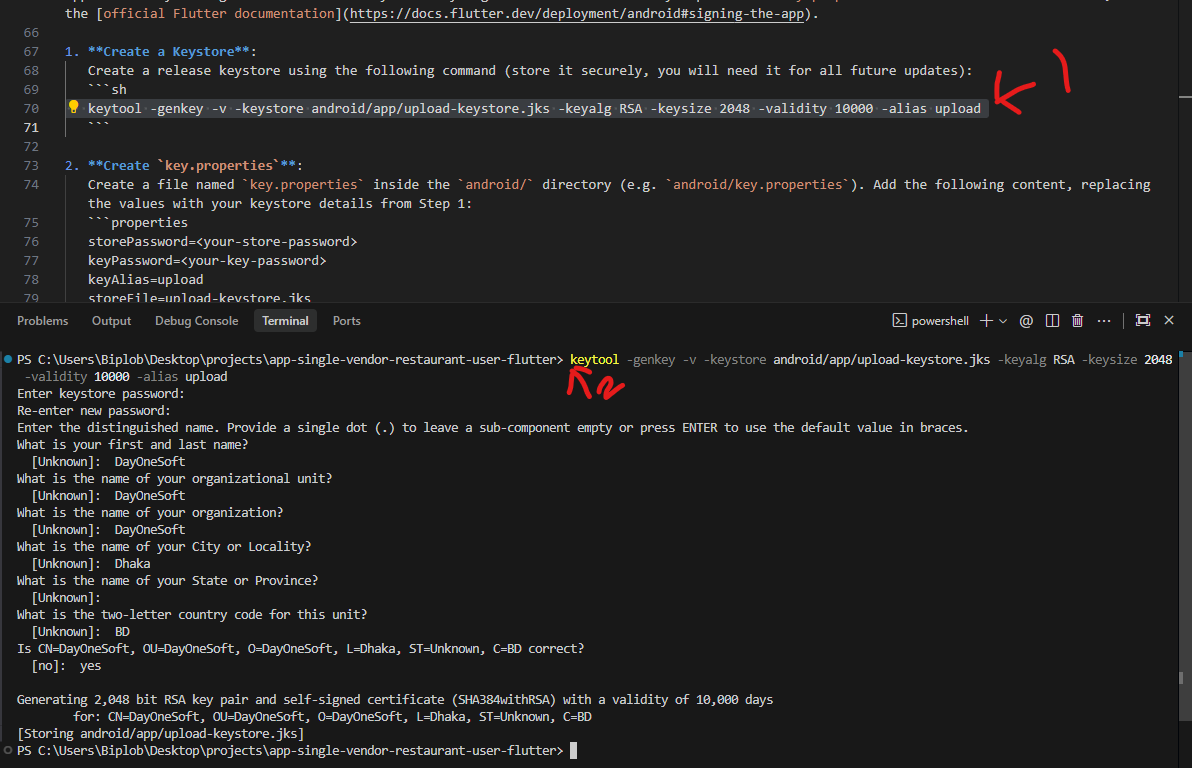
- Open a terminal in the project root and run the command below. It creates upload-keystore.jks inside android/app/.
keytool -genkey -v -keystore android/app/upload-keystore.jks -keyalg RSA -keysize 2048 -validity 10000 -alias upload
- You will be asked to set a keystore password and confirm it, then answer a few identity questions (name, organizational unit, organization, city, state, and a two‑letter country code). Type yes to confirm. The screenshot below shows a complete run.
Step 2 — Create key.properties
- Create a file named key.properties inside the android/ directory (i.e. android/key.properties) and fill in the passwords and alias you used above. This file is git‑ignored and must not be committed.
storePassword=YOUR_STORE_PASSWORD
keyPassword=YOUR_KEY_PASSWORD
keyAlias=upload
storeFile=upload-keystore.jks
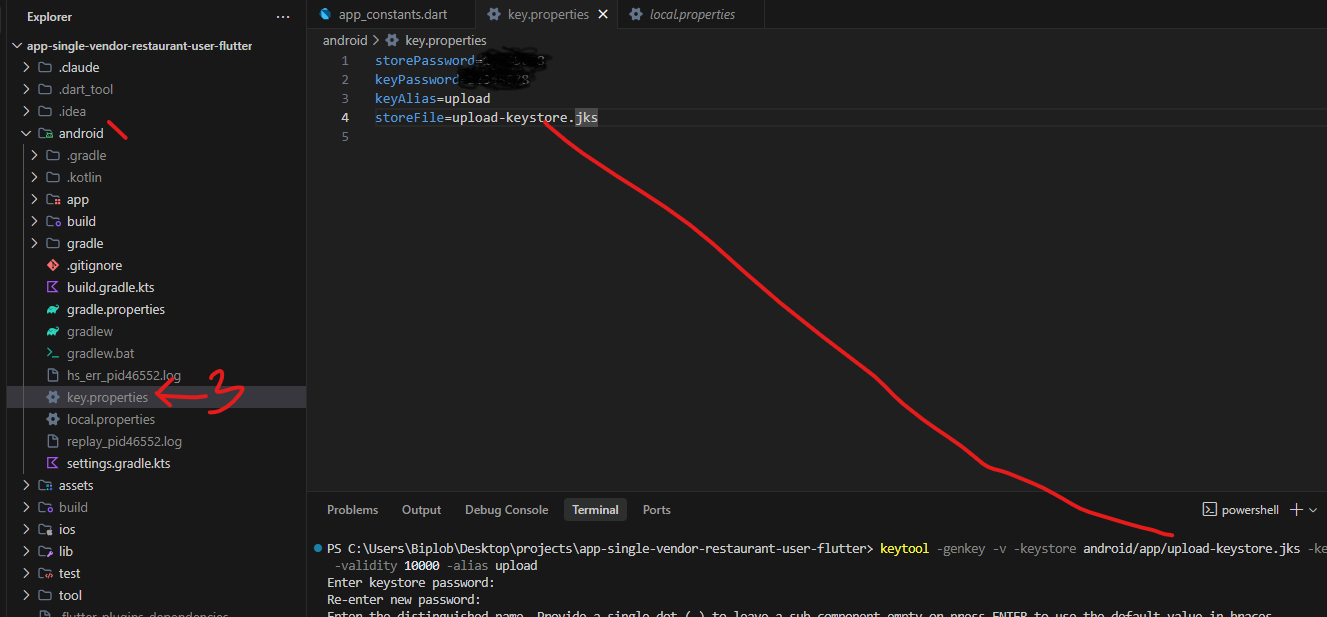
storeFile is resolved relative to android/app/, so upload-keystore.jks is enough when the keystore sits there. You may also use an absolute path if you keep the keystore elsewhere.
Step 3 — Wire it into Gradle
- Load and apply signing in android/app/build.gradle and enable shrinking for release:
def keystoreProperties = new Properties()
def keystorePropertiesFile = rootProject.file('key.properties')
if (keystorePropertiesFile.exists()) {
  keystoreProperties.load(new FileInputStream(keystorePropertiesFile))
}

android {
  signingConfigs {
    release {
      storeFile file(keystoreProperties['storeFile'])
      storePassword keystoreProperties['storePassword']
      keyAlias keystoreProperties['keyAlias']
      keyPassword keystoreProperties['keyPassword']
    }
  }
  buildTypes {
    release {
      signingConfig signingConfigs.release
      minifyEnabled true
      shrinkResources true
      proguardFiles getDefaultProguardFile('proguard-android-optimize.txt'), 'proguard-rules.pro'
    }
  }
}
Android: Play Console
- Use Play App Signing; first upload your .aab to register the upload key.
- Complete store listing, privacy policy, content rating, and data safety forms.
- Test location and notification flows on release builds before rollout.
iOS: Signing & Provisioning
- Open ios/Runner.xcworkspace → select Team → enable Automatically manage signing.
- Ensure a Distribution profile for release and correct Bundle Identifier.
- Capabilities: Push Notifications and Background Modes → Remote notifications; enable Location updates if used.
iOS: Archive & Submit
- Update Version and Build in Xcode (General tab).
- Product → Archive → Organizer → Distribute App → App Store Connect → Upload.
- Fill App Store Connect metadata and privacy questions; include location permission justifications if applicable.
Release Checklist
- Verify production API endpoints and disable verbose logs.
- Confirm foreground/background location prompts and behaviors reflect features used.
- Update app icons, splash, and display name for production.
- Back up keystore and signing credentials in a secure vault.
API Usage
Base URL & Environments
- Keep separate API base URLs for dev, stage, and prod.
- Inject at build time or load securely; do not hardcode secrets.
- Pass runtime values when needed:
flutter run --dart-define=API_BASE_URL=https://api.example.com
Authentication
- Use token-based auth with short-lived access token and refresh token.
- Attach Authorization header to protected requests:
Authorization: Bearer <ACCESS_TOKEN>
- Refresh tokens on 401; queue and retry pending requests after refresh; logout if refresh fails.
- Store refresh tokens in platform-secure storage.
Common headers
- Accept: application/json
- Accept-Language: current locale code
- X-App-Version: app version/build
Pagination & filtering
- Use page/limit or cursor; maintain hasMore based on response payload.
- For delivery lists, filter by status and date ranges to reduce payloads.
Error handling
- Map 400/401/403/404/429/5xx to meaningful messages and fallback states.
- Retry safe idempotent calls only; prompt user on repeated failures.
Retry, timeout, and backoff
- Use connection/receive timeouts to avoid hangs.
- Exponential backoff with jitter for transient errors; avoid retrying non-idempotent requests.
Security
- Use HTTPS in production; never log tokens or PII.
- Persist sensitive values using platform-secure storage APIs.
Sample requests (cURL)
- Authenticate:
curl -X POST https://api.example.com/api/v1/auth/login \
  -H "Content-Type: application/json" \
  -d '{"phone":"0123456789","otp":"123456"}'
- Fetch deliveries page with filters:
curl "https://api.example.com/api/v1/deliveries?page=1&limit=20&status=ongoing" \
  -H "Authorization: Bearer <ACCESS_TOKEN>" \
  -H "Accept: application/json" \
  -H "Accept-Language: en"
Testing
Unit & Widget Tests
- Put tests under test/ and name files *_test.dart.
- Run all tests:
flutter test
- Run a specific test file or filter by test name:
flutter test test/path/to/widget_test.dart
flutter test --plain-name "shows order list"
- Increase concurrency to speed up suites where appropriate:
flutter test --concurrency=4
Integration Tests
- Place tests in integration_test/, start an emulator/simulator or connect a device.
- Run all integration tests:
flutter test integration_test
- Target a specific device (find with flutter devices):
flutter test integration_test -d <deviceId>
Coverage
- Generate coverage and open a local HTML report (requires lcov):
flutter test --coverage
genhtml coverage/lcov.info -o coverage/html
open coverage/html/index.html
Best Practices
- Isolate business logic with fakes/mocks; avoid real network or location calls in tests.
- Use golden tests for delivery flow UI where layout must remain consistent.
- Keep tests deterministic and independent; avoid sharing mutable global state.
Update Procedure
When a new version is released, you will receive the update package containing either changed files only or the full source code. You can choose whichever method suits your setup best.
Before You Update
- Back up your entire project folder
- Note any custom changes you have made to the source code
- Ensure your development environment meets the latest version's requirements
- Download the update package from your purchase account
Option A: Apply Changed Files Only
This method is recommended if you have made custom modifications and want to preserve them.
- Step 1: Extract the update package. Locate the folder containing only the changed files.
- Step 2: Copy the changed files into your existing project, replacing the corresponding files in their respective directories.
- Step 3: If you have custom modifications in any of the replaced files, manually merge your changes back into the updated files.
- Step 4: Run flutter pub get to update dependencies.
- Step 5: Clean and rebuild the project:
flutter clean
flutter pub get
flutter run
Option B: Replace with Full Source Code
This method is recommended for a clean update when you have not made custom modifications.
- Step 1: Extract the update package. Locate the full source code folder.
- Step 2: Replace your entire project directory with the new full source code.
- Step 3: Restore your configuration files and assets:
- Firebase configuration files (google-services.json, GoogleService-Info.plist)
- App icons and splash screen assets
- Package name / bundle identifier settings
- API base URL and any environment-specific values
- Signing keys and keystore files
- Step 4: Run flutter pub get to install dependencies.
- Step 5: Clean and rebuild the project:
flutter clean
flutter pub get
flutter run
Post-Update Checklist
- Verify the app builds and runs without errors on both Android and iOS
- Test core functionality: login, accepting deliveries, navigation, and status updates
- Confirm push notifications and location tracking are working
- Validate that all custom modifications have been reapplied (if using Option A)
- Run on a physical device to verify full functionality before releasing
Troubleshooting
Quick checks
- Verify setup and toolchain:
flutter doctor -v
- Clear caches and re-fetch dependencies:
flutter clean
flutter pub get
Android build issues
- Gradle/AGP mismatch: update Gradle wrapper and Android Gradle Plugin together.
android/gradle/wrapper/gradle-wrapper.properties
distributionUrl=https\://services.gradle.org/distributions/gradle-8.x-all.zip
- Update AGP in android/build.gradle:
classpath "com.android.tools.build:gradle:8.x.y"
- compileSdk/targetSdk errors: align in android/app/build.gradle.
- Activity exported error (Android 12+): set exported on activities with intent filters.
<activity android:name=".MainActivity" android:exported="true">...</activity>
- INSTALL_FAILED_VERSION_DOWNGRADE or SIGNATURE conflict: uninstall previous app.
adb uninstall your.package.name
- google-services.json not found: ensure file exists at android/app/google-services.json.
iOS build issues
- CocoaPods errors: update/install pods in ios/ then rebuild.
cd ios
pod repo update
pod install --repo-update
- Clean DerivedData when Xcode builds behave oddly:
rm -rf ~/Library/Developer/Xcode/DerivedData
- Deployment target mismatch: align Podfile platform with Xcode target.
- Signing/profile issues: set Team, Bundle Identifier, Capabilities.
Firebase push
- No token on iOS: use real device, enable Push/Background Modes, upload APNs key to Firebase.
- Android 13+ no notifications: request POST_NOTIFICATIONS permission at runtime.
- Reinstall after config changes to refresh tokens.
Location permissions
- Android: ensure location permissions are declared and requested at runtime.
- iOS: add usage descriptions in Info.plist and request permission in app.
<key>NSLocationWhenInUseUsageDescription</key>
<string>Your location is used to navigate deliveries.</string>
Network & SSL
- CERTIFICATE_VERIFY_FAILED: use HTTPS, correct device time, avoid self‑signed certs in prod.
- Apply timeouts and limited retries with backoff for transient failures.
Code generation
- Generated files missing or stale:
flutter pub run build_runner build --delete-conflicting-outputs
Maps
- Add google_maps_api_key to secrets.xml; verify platform SDKs enabled and key restrictions are correct.
Dependencies & version conflicts
- "version solving failed" or pub get errors: align the SDK constraint in pubspec.yaml with your installed Flutter/Dart versions, then re-fetch.
flutter --version
flutter pub get
flutter pub upgrade --major-versions
- Corrupted package cache: repair it and re-fetch.
flutter pub cache repair
JDK, Gradle & Android SDK
- "Unsupported class file major version" or JDK errors: use the bundled JDK 17 (Android Studio → Settings → Build, Execution, Deployment → Build Tools → Gradle → Gradle JDK).
- "SDK location not found": create android/local.properties with sdk.dir and flutter.sdk, or set ANDROID_HOME.
- Accept any missing licenses:
flutter doctor --android-licenses
Blank / white screen on launch
- Almost always a runtime exception during startup — read the first red error in the console.
- Common causes: missing firebase_options.dart, missing google-services.json / GoogleService-Info.plist, or an invalid baseUrl.
- Run verbose and inspect the stack trace:
flutter run -v
App crashes immediately on startup
- Firebase not initialized: ensure Firebase.initializeApp() runs in main() before runApp().
- Package name vs google-services.json mismatch: the applicationId / bundle ID must match the Firebase app.
- After changing the package name or Firebase config, uninstall the old app and reinstall.
Cannot connect to backend / API errors
- Verify baseUrl has no trailing slash and points to the domain root (not /admin). See Connect to Backend & Firebase.
- 401 / 403: token missing or expired — confirm login succeeds and the Authorization header is sent.
- 419 / session: make sure you are calling the API routes (/api/v1/...), not web routes.
- Cleartext / HTTP blocked: use HTTPS in production. iOS blocks plain HTTP via App Transport Security.
- "Connection refused" on an emulator: the device's localhost is not your PC — use your machine's LAN IP or a public URL.
Localization not updating
- After editing ARB files, regenerate and hot-restart (not hot-reload):
flutter gen-l10n
- New language missing: confirm the locale is in supportedLocales and the ARB @@locale value is correct.
Fonts or images not showing
- Declare every asset and font in pubspec.yaml under flutter:, keeping exact paths and filenames.
- Run flutter pub get and do a full restart after editing pubspec.yaml.
App name, icon, or splash not updating
- Uninstall the previous build first — launcher icons are frequently cached by the OS.
- Regenerate launcher icons / splash, then rebuild:
flutter clean
flutter pub get
flutter run
Keystore & signing errors
- "keystore file not found": confirm storeFile in key.properties matches the keystore location — a name like upload-keystore.jks is resolved relative to android/app/; otherwise use an absolute path.
- "failed to read key ... wrong password": verify storePassword / keyPassword / keyAlias match the keystore.
- Play Console upload-key mismatch: use the same upload keystore registered with Play App Signing.
Slow builds or out of memory
- Increase Gradle memory in android/gradle.properties:
org.gradle.jvmargs=-Xmx4096m
- The first build is slow (Gradle and CocoaPods downloads); later builds are cached.
CocoaPods on Apple Silicon
- If pod install fails on M-series Macs, reinstall CocoaPods and update the repo:
sudo gem install cocoapods
cd ios
pod install --repo-update
Links
Version History
Version 2.0 Latest
- Added Real-time Chat with admin and customers
- Improved order notification reliability via Firebase
- Improved earnings summary and transaction history screen
- Bug fixes and performance improvements
Version 1.0.0
- Initial release
- Order acceptance and delivery workflow
- Real-time delivery tracking with Google Maps
- Earnings and payout history
- Firebase push notifications for new orders
- Profile and account management
- Multi-language support (EN, BN, HI, AR, ES)
- Dark and light theme support